
Download LibreSprite – Free Pixel Art & Animation Tool for Mac
Overview
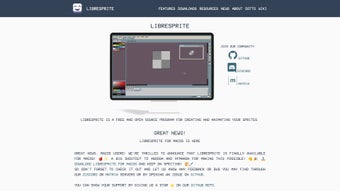
LibreSprite is a completely free, open‑source multimedia program tailored for macOS users who need a lightweight yet powerful solution for creating pixel art, sprite sheets, and frame‑by‑frame animations. Built on the legacy of the beloved Aseprite engine, LibreSprite retains the classic workflow that artists and indie game developers have come to rely on, while stripping away costly licensing fees. The interface is deliberately minimalistic, offering a clean canvas, intuitive toolbar, and a responsive layout that scales gracefully across Retina displays.
Whether you are a beginner experimenting with 8‑bit characters or a seasoned animator polishing a retro‑style game, LibreSprite provides the essential tools—layers, onion‑skinning, customizable brushes, and a robust export pipeline—to streamline your creative process. The program supports a wide array of file formats, including PNG, GIF, and sprite sheet JSON descriptors, making it easy to integrate assets directly into Unity, Godot, or custom engines. Because it is open source, the community continuously contributes bug fixes, language packs, and feature extensions, ensuring the software stays current with modern workflow demands.
In short, LibreSprite delivers a cost‑effective, secure, and highly adaptable environment for any Mac user looking to produce high‑quality graphics without the overhead of commercial software.
Key Features
- Layer Management: Unlimited layers with blending modes, opacity controls, and group nesting for complex compositions.
- Onion Skinning: Real‑time frame preview that lets you compare current and previous animation steps, essential for smooth motion.
- Customizable Brushes: Create, edit, and save brush presets, including pixel, smudge, and pattern brushes.
- Sprite Sheet Export: One‑click generation of sprite sheets in PNG or JSON format, complete with frame metadata for easy engine integration.
- Multi‑Format Support: Import and export PNG, GIF, BMP, and even legacy Aseprite files (.ase/.aseprite).
- Palette Management: Advanced palette editor with support for indexed colors, gradient creation, and palette swapping.
- Keyboard Shortcuts: Fully configurable hotkeys to speed up workflow and reduce mouse dependence.
- Undo/Redo Stack: Unlimited undo levels, allowing you to experiment without fear of permanent mistakes.
- Cross‑Platform Consistency: While optimized for macOS, the same binary can be compiled for Windows and Linux, ensuring project portability.
- Open‑Source Community: Regular updates from contributors, detailed documentation, and an active forum for troubleshooting.
Installation & Compatibility
Step‑by‑Step Installation on macOS
Downloading and installing LibreSprite on a Mac is straightforward:
- Visit the official LibreSprite GitHub releases page and locate the latest macOS .dmg file.
- Click the download link; the file size is typically under 30 MB, making it quick even on slower connections.
- Once the download completes, open the .dmg and drag the LibreSprite icon into your Applications folder.
- If macOS warns about an unidentified developer, right‑click the app, select “Open,” and confirm you trust the source. This is safe because the software is open source and signed by the community.
- Launch LibreSprite from the Dock or Spotlight. The first run may prompt you to grant access to your Documents folder for saving projects—granting this permission ensures smooth export operations.
System Requirements & Operating System Support
LibreSprite runs natively on macOS 10.13 (High Sierra) and later, including the latest macOS Ventura. The application is optimized for Apple Silicon (M1/M2) as well as Intel processors, delivering responsive performance even with large canvases (up to 4096 × 4096 px). Memory consumption stays modest, typically under 200 MB during active editing, which leaves ample resources for other development tools such as Unity or Godot. For users who work across platforms, LibreSprite source code can be compiled for Windows 10/11 and major Linux distributions, ensuring that assets created on a Mac can be opened and edited on any system without compatibility hiccups.
First‑Time Configuration
After launching, navigate to Preferences → Interface to adjust UI scaling for Retina displays. Set your default canvas size, enable auto‑save intervals (recommended every 5 minutes), and configure your preferred export folder. These settings are stored in a lightweight plist file within your user library, making them portable when you migrate to a new Mac. Finally, explore the Help → Keyboard Shortcuts panel to familiarize yourself with the default hotkeys, which you can customize to match your workflow.
Pros & Cons
What Users Love About LibreSprite
- Completely free with no hidden licensing fees.
- Lightweight installation—under 30 MB download size.
- Robust layer and onion‑skinning tools that rival paid alternatives.
- Native macOS support, including Apple Silicon acceleration.
- Active open‑source community providing frequent bug fixes and feature requests.
- Export options that directly feed into popular game engines.
Areas for Improvement
- Lacks advanced vector drawing tools; focused solely on raster pixel art.
- No built‑in audio timeline for synchronizing sound with animations.
- Interface, while clean, may feel dated compared to modern commercial editors.
- Limited documentation compared to paid counterparts; reliance on community forums.
- No native Windows installer (requires manual compilation for non‑Mac users).
FAQ
Is LibreSprite truly free for commercial use?
Yes. LibreSprite is released under the GPL‑3.0 license, which permits unlimited use, modification, and distribution, including commercial projects, without any royalty payments.
Can I import Aseprite files into LibreSprite?
Absolutely. LibreSprite retains compatibility with the .ase and .aseprite formats, allowing you to open existing Aseprite projects and continue working without conversion loss.
How does LibreSprite handle high‑resolution Retina displays?
The application automatically scales UI elements and canvas rendering to match the device pixel ratio, delivering crisp graphics and sharp interface controls on Retina screens.
Is there a built‑in way to create GIF animations?
Yes. After completing a frame‑by‑frame animation, you can export directly to an animated GIF via File → Export → GIF, with options for loop count and frame delay.
What is the recommended workflow for exporting sprite sheets to Unity?
Export your animation as a PNG sprite sheet and generate a corresponding JSON descriptor (via File → Export → Sprite Sheet (JSON)). In Unity, import both files; the JSON will automatically slice the sheet into individual sprites when you enable the “Sprite Mode: Multiple” option.
Conclusion & Call to Action
LibreSprite stands out as a powerful, no‑cost alternative for Mac users who need a reliable pixel‑art and animation editor. Its lightweight footprint, extensive feature set, and open‑source ethos make it an ideal companion for indie developers, hobbyists, and educators alike. By offering seamless sprite‑sheet export, robust layering, and a user‑friendly interface, LibreSprite eliminates the financial barrier that often hinders creative experimentation. If you’re ready to start crafting retro‑style graphics without paying for a license, download LibreSprite today, explore its community‑driven extensions, and bring your pixel dreams to life.
Rating: 4.5/5 – LibreSprite delivers a professional‑grade experience at zero cost, with only minor UI quirks.







